How to Create App Store Screenshots in Figma
Creating a complete App Store screenshot set manually can involve repeating the same layout, device and background work across multiple screens. App Store Screenshot Studio simplifies this process directly inside Figma. Upload your app screenshots, choose a Story Layout and background, and generate a complete screenshot story in seconds. In this guide, we'll walk through the actual workflow.
1. Prepare Your App Screenshots
Start with screenshots from the screens you want to showcase on the App Store.
Choose screenshots that communicate the most important parts of your app.
App Store Screenshot Studio supports uploading up to 6 screenshots at a time.
For the best results, use high-quality screenshots captured directly from your app.
2. Upload Your Screenshots
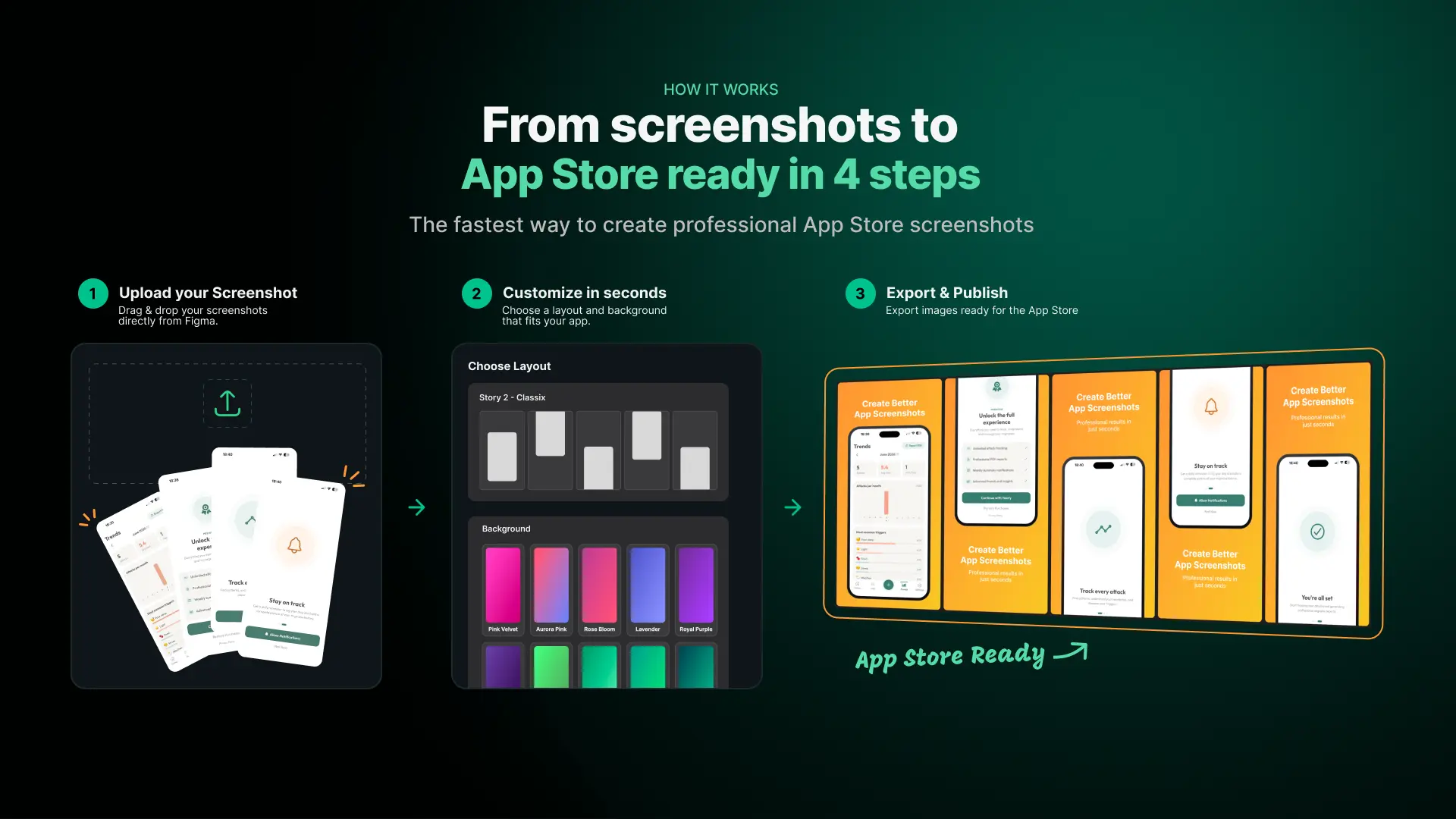
Open App Store Screenshot Studio inside Figma and add the screenshots you want to use.
You can click to upload or drag and drop your images into the plugin.
The selected screenshots appear inside the plugin so you can confirm which screens will be used before continuing.
3. Choose a Story Layout
Next, choose how the screenshots should be presented.
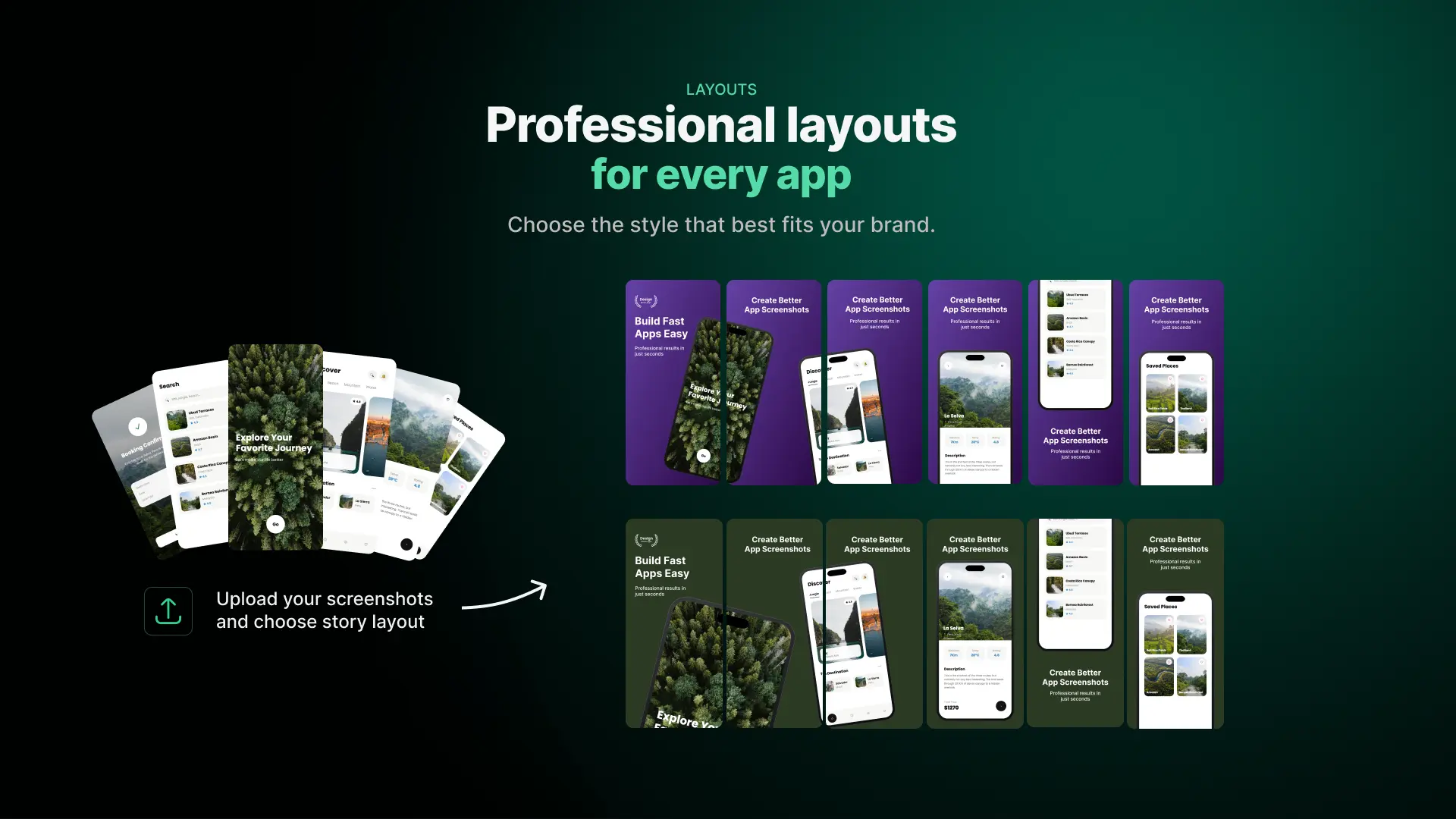
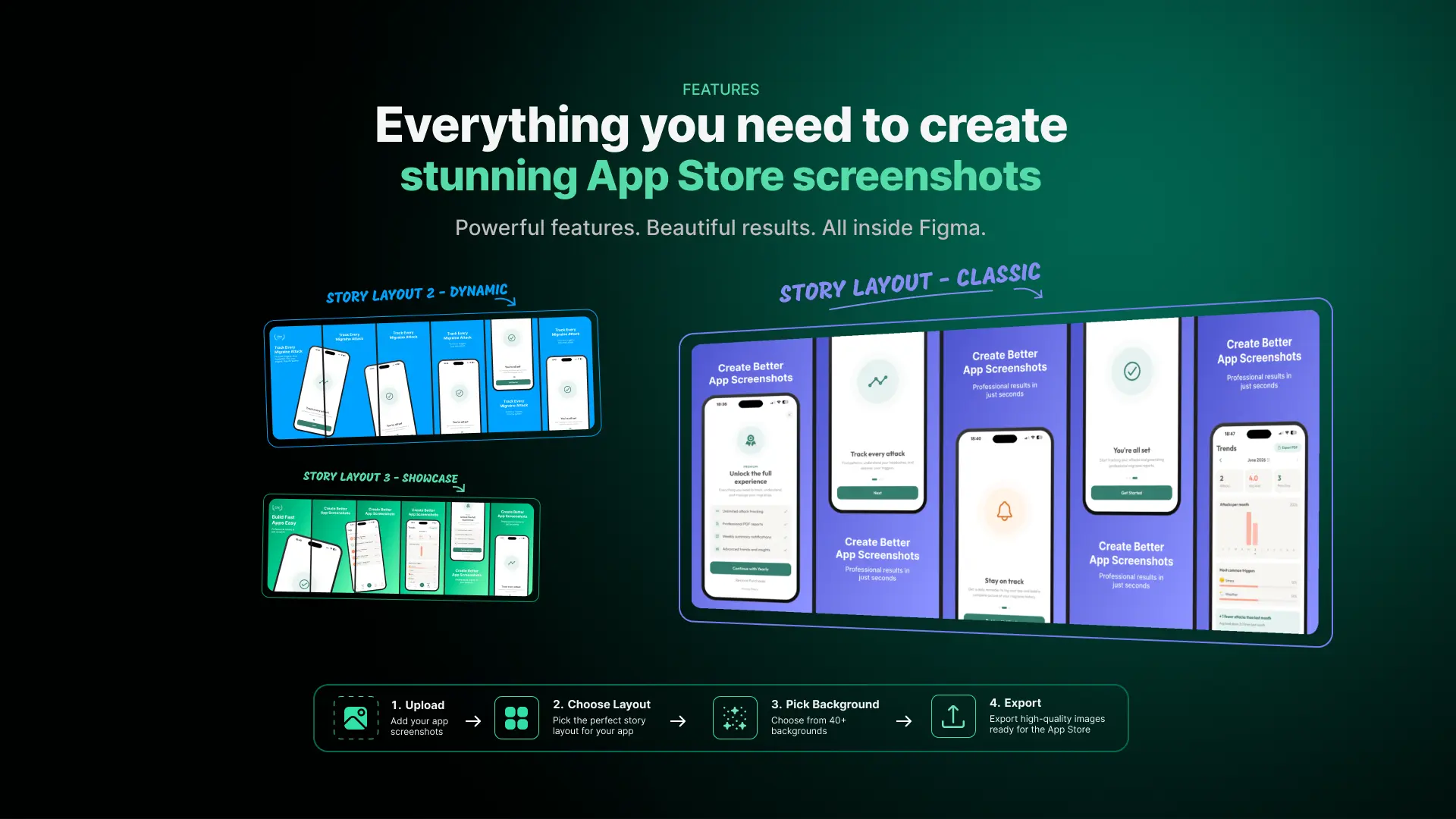
App Store Screenshot Studio includes multiple Story Layouts designed to create a consistent screenshot sequence.
Different layouts use different compositions and arrangements across the screenshot set.
Choose the layout that best fits the app and the type of story you want the screenshots to communicate.
4. Choose a Background
Choose the visual style for the screenshot set.
App Store Screenshot Studio provides different background options including:
- Solid colors
- Gradients
- Patterns
Choose a background that works well with your app's interface and branding.
The selected background will be applied as part of the generated screenshot story.
5. Generate the Complete Screenshot Story
Once your screenshots, Story Layout and background are selected, generate the design.
App Store Screenshot Studio automatically creates the screenshot story directly in Figma using your selected images and design options.
Instead of manually building each screenshot individually, the complete set is generated together using the chosen Story Layout.
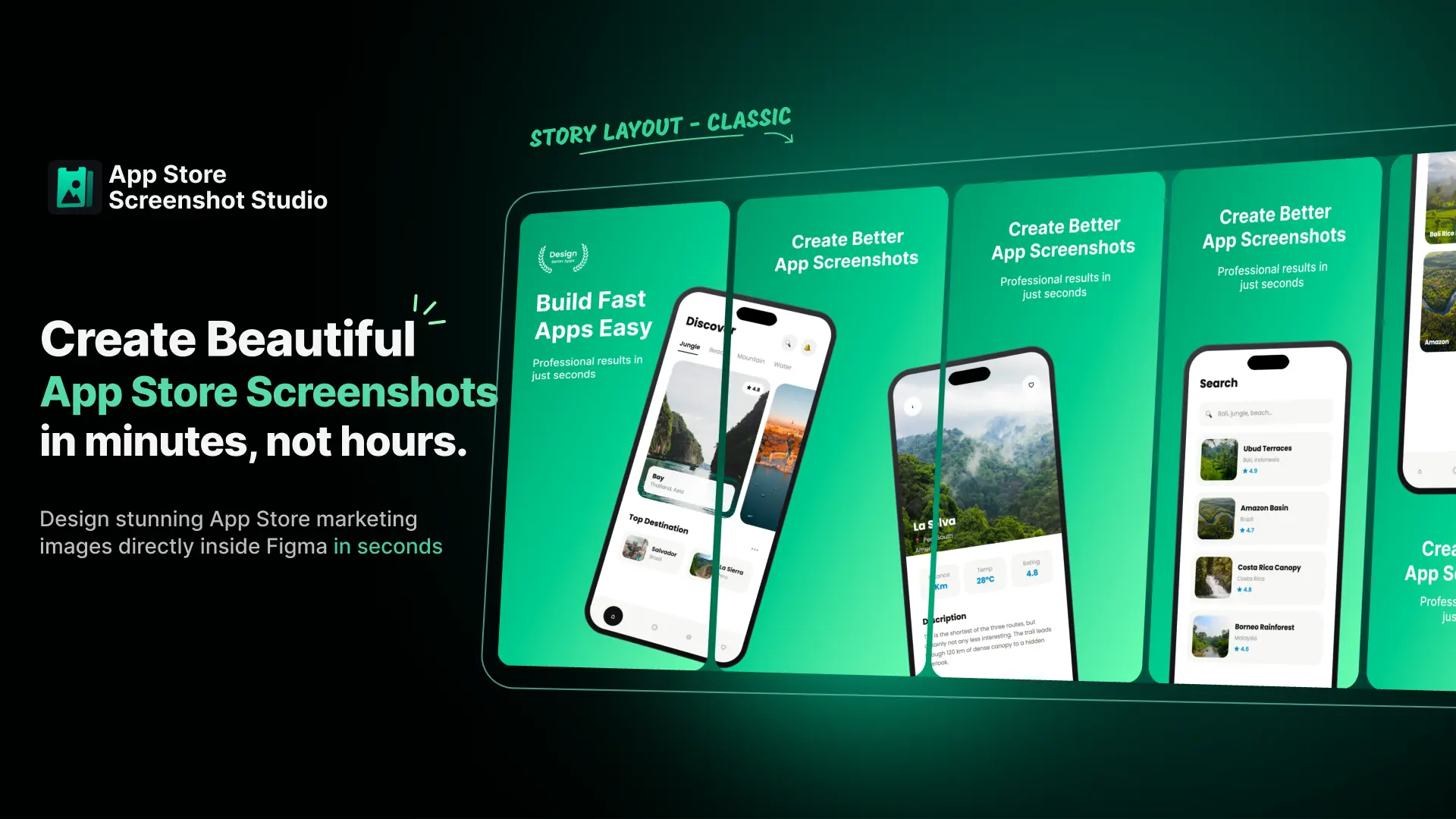
6. Review and Customize in Figma
After generating the screenshot set, review the result directly in Figma.
Because the workflow stays inside Figma, you can continue working with the generated design and make adjustments where needed before exporting your final App Store screenshots.
Why Use an App Store Screenshot Generator?
Creating App Store screenshots manually gives you full control, but repeating the same design work across several screenshots can take time.
An App Store screenshot generator can speed up the repetitive parts of the process while still giving you a consistent screenshot story.
App Store Screenshot Studio is built specifically for this workflow inside Figma — from uploading your screenshots to generating the complete visual set.